

DuckTabE
A terminal UI for querying data files with DuckDB. Point it at a Parquet file, a CSV, a JSON dump — anything DuckDB can read — and start writing SQL immediately, with no boilerplate, no notebook to open, and no schema to look up first.
ducktabe orders.parquet customers.csv
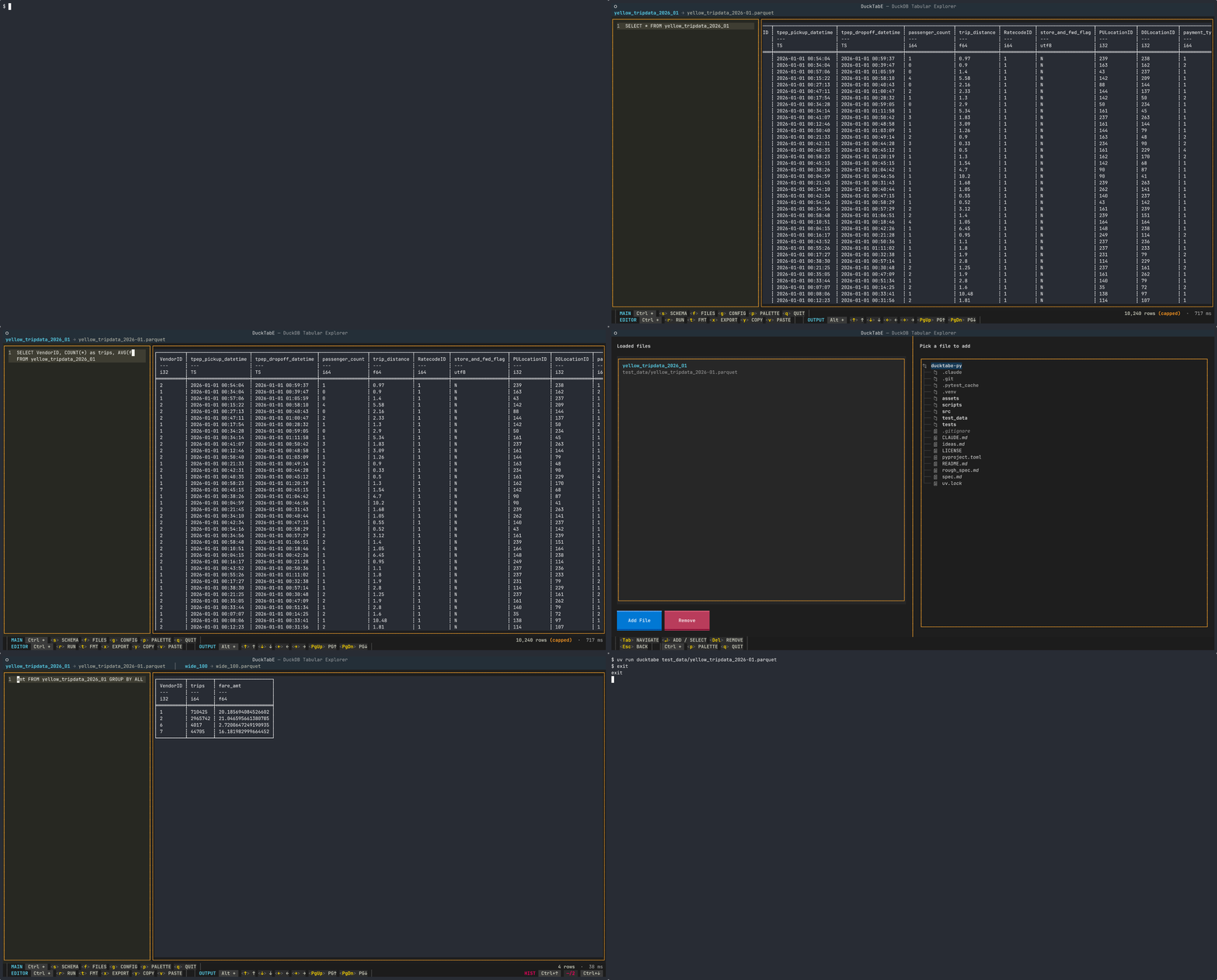
Features
- Instant data exploration — open any file DuckDB supports and see results immediately, no setup required
- SQL editor with syntax highlighting — write queries in a side-by-side editor with soft wrap and SQL highlighting
- Streaming results — first rows appear as soon as DuckDB produces them; no waiting for the full scan
- Schema viewer — browse column names and types in a collapsible tree (
Ctrl+S) - File manager — add and remove files on the fly with a built-in file picker (
Ctrl+F) - Query history — per-file history with auto-restore; pick up where you left off yesterday
- Export — write full results to Parquet, JSON, Arrow IPC, or CSV (
Ctrl+X) - Clipboard — copy (
Ctrl+Y) and paste (Ctrl+V) in the editor - Recent files — MRU picker on startup so you never have to navigate to the same file twice
- Configurable — naming scheme, format-on-run, poll interval, column wrapping (
Ctrl+G) - Keyboard-driven — every shortcut uses a modifier key so the editor is never interrupted
The real problem this solves
You have a Parquet file. You want to know what's in it. The options are:
- Open a notebook, import pandas/polars, remember the read function, load the file, call
.describe(), realise you actually need to write a query, go back. - Fire up DBeaver or DataGrip, configure a connection, find the file browser.
- Write a ten-line Python script, run it, throw it away.
DuckTabE skips all of that. It opens the file as a view named df, shows you the schema,
and drops you into a SQL editor. The first query is already written. Press Ctrl+R.
About this project
DuckTabE is an experiment in spec-driven development: using an LLM as the implementer and a human as the project manager.
The only thing written by hand was rough_spec.md — a plain-English
description of what the tool should do, written before a single line of code existed.
Everything else — the architecture, the code, the tests, the documentation, this README —
was produced by Claude working from that spec and from iterative feedback.
The workflow looks like this:
human writes rough_spec.md
    ↓
LLM proposes implementation plan
    ↓
human reviews, adjusts ("editor + output should be side by side", "no fzf dependency")
    ↓
LLM implements, writes tests, finds and fixes bugs, writes specs
    ↓
human reviews output, identifies gaps ("what else is pending?")
    ↓
LLM fixes gaps, repeats
The intent is to stay in the project-manager role: defining requirements, reviewing
decisions, catching things that were missed, and steering — without writing implementation
code. The formal spec.md that drives the project was itself written by the LLM
based on the rough spec; rough_spec.md is kept only as a historical artefact.
This is not a claim that LLMs can replace engineers. It is a test of how far careful requirement-writing and iterative review can get you, and what kinds of decisions still require a human to catch.
Installation
Requires Python 3.11+ and uv.
git clone https://github.com/avimallu/ducktabe-py.git
cd ducktabe-py
uv tool install .
Or run directly without installing:
uv run ducktabe file.parquet
Usage
Load one or more files
# Single file — available as the view "df"
ducktabe sales.parquet

# Multiple files — available as df1, df2, df3
ducktabe jan.parquet feb.parquet mar.parquet

# Mix formats freely — DuckDB handles the rest
ducktabe events.parquet metadata.csv config.json
No files — pick interactively
ducktabe
On launch, if DuckTabE has a non-empty history of recently-opened files, it shows a
recent-files picker with the last 5 paths and a Browse… button. Pick one to open
it, or press Browse… (or Escape) to fall through to the full file picker (Open /
Go Back / Cancel). Go Back returns to the recent-files list. First-ever launches with
no history go straight to the full picker with the Go Back button hidden. The picker
is rooted at the directory you ran ducktabe from, not your home — run it next to your
data and the first view you see is the data. You can add more files later from the File
Manager.
Inspecting installation
ducktabe --version         # print version and exit
ducktabe --config-path     # print the path to your config file and exit
ducktabe --help            # full option list
Naming scheme
By default, files are named df, df1, df2, … so your queries are short. If you prefer
the file's own name (sales, customers, …), change the naming scheme in Configuration
(Ctrl+G).
Keyboard reference
DuckTabE is designed around one rule: the query editor is always reachable, and typing in it is never interrupted. Every shortcut uses a modifier key.
| Shortcut | Action |
|---|---|
Ctrl+R / Ctrl+Enter |
Run query |
Ctrl+T |
Format SQL |
Ctrl+X |
Export results |
Ctrl+Y |
Copy selected text in the editor |
Ctrl+V |
Paste into the editor |
Ctrl+S |
Schema viewer |
Ctrl+F |
File manager (add / remove files) |
Ctrl+G |
Configuration |
Ctrl+P |
Command palette |
Ctrl+Up / Ctrl+Down |
Walk backward / forward through per-file query history |
Alt+PageUp / Alt+PageDown |
Scroll output / schema by one viewport height |
Alt+↑ / Alt+↓ / Alt+← / Alt+→ |
Scroll output table by one row / one column step |
Ctrl+Alt+R |
Reload schema (appears only when a file has changed on disk) |
Ctrl+Q |
Quit |
Escape |
Pop the current overlay back to the main screen |
On macOS, Ctrl maps to Ctrl (not Cmd) in terminal applications.
Escape is reserved for popping overlays (Schema, Files, Config, Export, the startup
recent-files picker, and the built-in command palette) — it is intentionally not bound
to quit so it never fights those per-screen handlers. Use Ctrl+Q to quit the app.
Screens
Main (editor + output)
The default view. A loaded-files bar sits directly under the title showing every
alias → filename pair in styled text (bold cyan alias, plain filename, dim separator).
Below that, the left 25 % is the SQL editor and the right 75 % is the result table. A
two-row Zellij-inspired shortcut bar at the bottom lists every keybinding so you never
have to hunt for what's available. Shortcuts are organized by section — MAIN
(app-level navigation) on row 1, EDITOR (query actions + clipboard) and OUTPUT
(scroll shortcuts) on row 2. Each section label and group border makes the modifier
context clear. Per-run query stats (3,724,889 rows · 830 ms) appear right-aligned on
row 1, and an always-visible history indicator (HIST Ctrl+↑ —/5 Ctrl+↓) appears
right-aligned on row 2 whenever history exists. Results that hit the 10 240-row
streaming cap are marked (capped).
The editor opens pre-filled with one of:
- The last query you ran against this file — DuckTabE persists successful queries
per file path to a sidecar
history.jsonand auto-restores the most recent one when you reopen the same file. This is the "pick up where I left off yesterday" case. SELECT * FROM <alias>if the file has no history yet.SELECT 1if no files are loaded at all.
Whatever the editor ends up with at launch is run automatically — opening ducktabe against a file drops you into the data with no Ctrl+R required. You can start editing as soon as the rows appear.
Edit the SQL and press Ctrl+R (or Ctrl+Enter) to run. Ctrl+Up / Ctrl+Down walk
backward and forward through the per-file history; typing first and then pressing
Ctrl+Up stashes your draft so Ctrl+Down past the newest entry restores it. The
editor uses soft wrap so long lines flow onto the next visual row inside the 25 %
pane instead of scrolling off the right edge.
The result table uses Polars-style formatting with frozen column headers showing both the
column name and its abbreviated type (i32, utf8, list, Struct<3 elements>, …). The
editor owns focus by design, so the table is scrolled from the main screen with
Alt+↑/Alt+↓/Alt+←/Alt+→ (one row / four characters) and Alt+PageUp/Alt+PageDown
(one viewport). Click into the table if you prefer its own hjkl / arrow / PageUp bindings.
Results stream into the table one Arrow batch at a time: the first 1024 rows appear almost
immediately and subsequent batches fill in as DuckDB produces them. Results are capped at
10 240 rows to keep the render responsive. Exports (Ctrl+X) write the full result.
Schema viewer (Ctrl+S)
A tab per loaded file. Each column is shown as name: Type, with nested types (Struct,
List, Map) collapsible. Colour-coded: names in cyan, types in yellow. The tab bar and
footer stay pinned on screen while the tree content scrolls. Alt+↑/Alt+↓ and
Alt+PageUp/Alt+PageDown scroll the active tree.
File manager (Ctrl+F)
Split 50/50:
- Left half — currently loaded files, one per row with the alias on top (bold cyan) and the full path below (dim). Two buttons: Add File and Remove.
- Right half — a live directory tree rooted at the directory you ran ducktabe from. Press Enter on a file to register it immediately; the loading indicator on the left tells you DuckDB is fetching the schema. The files bar at the top of the main screen updates as soon as the registration finishes.
Tab cycles focus between the list, the buttons, and the picker. Delete removes whatever file is highlighted on the left. Escape pops back to the main screen.
Configuration
Ctrl+G opens the configuration screen. Settings are saved to the platform-appropriate
user config directory (no sudo required):
| Platform | Path |
|---|---|
| Linux | $XDG_CONFIG_HOME/ducktabe/config.toml (default ~/.config/ducktabe/config.toml) |
| macOS | ~/Library/Application Support/ducktabe/config.toml |
| Windows | %APPDATA%\ducktabe\config.toml |
Run ducktabe --config-path to print the exact location on your system.
| Setting | Default | Effect |
|---|---|---|
| Wrap columns | off | Fit all columns on screen by dividing width equally |
| Format on run | off | Auto-format SQL before every query execution |
| Naming scheme | df |
Use df1/df2 or filename stems for view aliases |
| Poll interval | 5 s | How often to check if loaded files have changed on disk |
File change detection
DuckTabE watches the modification time of every loaded file. If a file changes while the
tool is open, a warning bar appears in the editor pane. Running a query while changes are
pending shows an error; running it a second time bypasses the guard and lets DuckDB report
whatever it finds. Ctrl+Alt+R reloads the schema cleanly.
Exporting
Ctrl+X after running a query opens the export dialog. Supported formats: Parquet,
JSON, Arrow IPC, CSV (disabled automatically if the result contains nested
types such as Struct or List columns).
Exports write the complete query result — not just the rows displayed in the table.
Status
Early / experimental. The core query loop, schema viewer, file management, export, query history, and recent-files picker all work. Known gaps:
- Column autocomplete in the editor (designed but not implemented — see
src/ducktabe/tui/query_editor/spec.md) - TUI test coverage is 48
textual.Pilottests plus 16 history-store unit tests. Covered: all key bindings (includingCtrl+Enter,Ctrl+Q,Alt+arrowscrolling,Ctrl+Up/Ctrl+Downhistory nav), overlay navigation and Escape semantics (including the command palette over a pushed overlay), worker plumbing, status-bar row-count + elapsed-time rendering (including(capped)and error-clearing), add-file success and error paths, theNoActiveWorkerregression for the Add-File button, syntax and unknown-column errors, empty-result hint, format + bad-SQL preservation, the file-change guard (block + bypass + reload), multi-batch streaming render, auto-restore from history, MRU picker on startup, overlay auto-focus (Schema tree, Files list, help-panel KeyPanel), and editor/table border matching. A runnable end-to-end exercise against a real 3.7 M-row parquet lives atscripts/e2e_manual.py. Still uncovered: per-rowPolarsTablerendering output, the Config save path, and the file-change warning banner UI.
License
This project's own source code is released into the public domain under
The Unlicense. See the LICENSE file for the full
text. The choice is deliberate: the entire codebase (other than rough_spec.md) was
generated by an LLM, and dropping it straight into the public domain is consistent with
the "this is an experiment, not a product" framing of the whole project. Do whatever you
want with it — fork it, vendor it, rewrite it, ship it, ignore it.
Scope of this dedication. The Unlicense applies only to the files in this
repository. It does not apply to, modify, or relicense any of the third-party
dependencies the project pulls in at install time — duckdb, pyarrow, textual,
tomli-w, platformdirs, pytest, pytest-asyncio, and everything
those transitively depend on. Each of those retains its own license (all are permissive —
MIT or Apache 2.0 — at the time of writing, but verify for yourself). If you redistribute
DuckTabE in a form that bundles those dependencies, complying with their licenses is
your responsibility as the redistributor, not anything that this LICENSE file can help
you with.
No warranty, no support. The Unlicense text is explicit about this: the software is provided "as is", with no warranty of any kind. There is no maintenance commitment, no bug-fix SLA, and no one to escalate to. If you build on top of it and it breaks in production, that is entirely your problem.